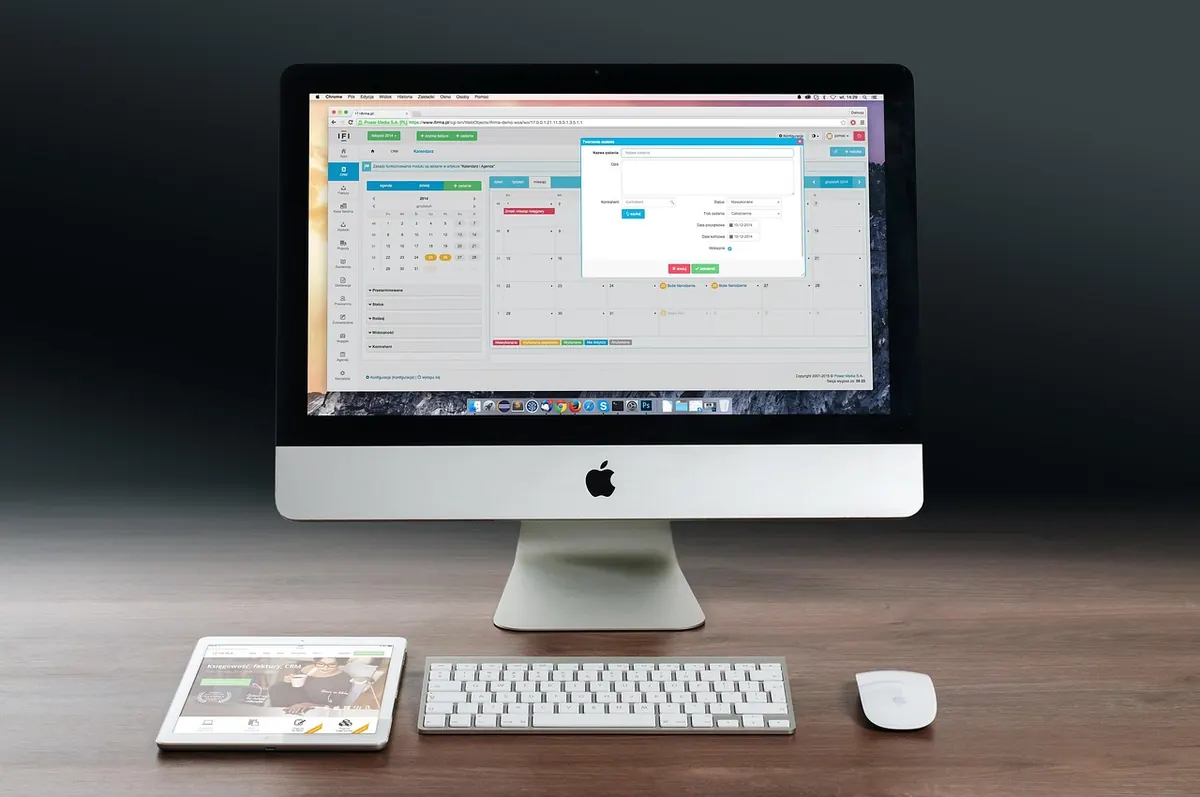
The monitor is the one part of a gaming setup you never stop looking at, and it is usually the part people research last. A new graphics card gets a week of reading; the screen gets whatever was on sale. That order is backwards. Resolution, refresh rate, and panel type decide how a game feels in your hands and how the whole desk looks when the PC is off, and none of those choices can be fixed later with a driver update.
Resolution and Screen Size Are One Decision
Resolution on its own says very little. What you actually feel is pixel density: how many pixels are packed into the panel in front of you, and how far away it sits. A 1080p screen at 24 inches lands around 92 pixels per inch, a 1440p screen at 27 inches sits near 109, and a 4K screen at 32 inches reaches roughly 138. Those numbers explain why a 27-inch 1080p monitor looks coarse next to a 24-inch one, and why 4K only earns its price once the panel is large enough to show the detail.
Two practical consequences follow. First, 4K at 27 inches is sharp but makes text and interface elements small unless you use display scaling, which Windows and macOS handle well in most software but which some older games handle badly. Second, every step up in resolution is a bigger bill for the GPU: 1440p asks for roughly 1.8 times the pixels of 1080p, and 4K roughly four times. If your card already struggles at 1080p, a 4K panel will not fix anything.
Refresh Rate, Frame Rate, and Response Time
Refresh rate is how many times per second the panel draws a new image, and it sets the ceiling on how smooth motion can look. At 60Hz a new frame appears every 16.7 milliseconds; at 144Hz every 6.9; at 240Hz every 4.2. Those gaps are what you feel as input lag and motion clarity in a fast flick or a strafe, and they are the reason competitive players care more about hertz than about resolution.
The ceiling only matters if your PC can reach it. A 240Hz monitor running at 90 frames per second is a 90Hz monitor with extra marketing. Check what your GPU actually delivers in the games you play at the resolution you chose, then buy a little above that so variable refresh rate has room to work. For most people, 144Hz to 165Hz at 1440p is the sweet spot: noticeably smoother than 60, realistic on a mid-range card, and not so fast that you can never feed it.
Response time is a different figure and the marketing around it is worse. Quoted numbers like "1ms" usually refer to a best-case pixel transition, not to how the panel behaves across the full range of colours. What matters in practice is overdrive tuning: too little and fast movement smears, too much and you get bright halos behind moving objects. Look for reviews that measure overshoot at several settings, and expect to spend ten minutes in the on-screen menu finding the one that suits your games.
Variable Refresh Rate
VRR, sold as FreeSync or G-Sync Compatible, syncs the panel to the frame rate instead of the other way around. It removes tearing without the input lag of vsync and makes an uneven frame rate far less distracting. Nearly every gaming monitor now supports some form of it; the detail worth checking is the range. A panel that only syncs from 48Hz to 144Hz will fall out of VRR territory in a heavy scene that pulls you to 40 frames per second.
Panel Types: TN, IPS, VA, and OLED
Panel technology decides contrast, colour, viewing angles, and how quickly pixels change. Four families cover almost everything on sale.
- TN panels are the cheapest and the fastest in raw response, which is why they lingered in esports for years. Colours look flat, contrast is modest, and the image shifts badly if you move your head. Hard to recommend now unless the budget is very tight.
- IPS gives accurate colour and stable viewing angles, which matters on a wide desk or in a shared room. Contrast sits around 1000:1, so blacks look grey in a dark room, and backlight bleed in the corners is common. Fast IPS variants are quick enough for serious play.
- VA is the contrast champion among LCDs, often three times deeper than IPS, and curved VA panels are common in large sizes. The trade-off is dark-scene smearing: shadows can trail behind movement. Good for atmospheric single-player games, less good for fast shooters.
- OLED switches individual pixels off for true black and near-instant response, and the difference in motion clarity is obvious. The concerns are brightness in a sunlit room and burn-in from static elements such as health bars or taskbars. If you play one game for hundreds of hours with a fixed HUD, think about it.
If you want one sentence to take to a shop: IPS for balanced quality, VA for dark-room contrast, OLED for the best motion and black levels your budget will allow, TN only at the very bottom of the price range.
Ports, Cables, and Consoles
The specs on the box assume the right connection. 4K at 120Hz or above needs HDMI 2.1 or DisplayPort 1.4 with display stream compression; a plain HDMI 2.0 cable will cap you at 4K 60. Consoles are stricter than PCs, so check the console's supported modes against the monitor's port list before buying. Count your devices, too: one DisplayPort and two HDMI inputs is easier to live with than a screen that forces you to unplug a console every time you switch to the PC. Cables in the box are often short and sometimes not the rated spec, so keep a spare certified one around.
Fitting the Monitor to Your Desk
Measure before you order. Sit at your desk and hold a tape from your eyes to where the screen would be; somewhere around arm's length is comfortable for most people, and it should influence your choice of size more than anything else. A 32-inch panel at 60cm feels overwhelming; the same screen at 80cm feels right. Set the top of the display roughly at eye level and tilt it back slightly.
Then look at the stand. Gaming stands are wide, deep, and often push the panel forward, which matters on a shallow desk. Check the VESA pattern if you plan a monitor arm — 100x100mm is standard, but some budget models omit mounting holes entirely. Curved panels are pleasant at 32 inches and up; below that the curve adds little. Finally, think about the room: a matte coating handles a window behind you much better than a glossy one, even if glossy looks richer after dark.
A Short Buying Checklist
- Decide resolution and size together, based on desk depth and what your GPU can push.
- Pick a refresh rate slightly above your realistic frame rate, not the biggest number on the page.
- Choose a panel type for your genre: VA or OLED for atmosphere, IPS for balance, TN only on a tight budget.
- Confirm the ports you need for PC and console, and that the included cables match.
- Check stand footprint and VESA mounting before assuming it fits your desk.
- Read a review that measures response time and overshoot, not just the spec sheet.
Where to Spend and Where to Save
Money goes furthest on the panel itself. Resolution, panel type, and a well-tuned backlight are what you will notice every day; RGB lighting on the bezel, built-in speakers, and a gaming badge are not. If two monitors share a panel and differ in price, the cheaper one with a plain stand is usually the better buy, provided the ports are there.
Buy from a shop with a clear dead-pixel and return policy, and test the screen in the first week with a full-screen colour check at each brightness level. Keep the box until you are sure. Then set brightness to something comfortable for your room rather than maximum, take breaks during long sessions, and if you get persistent headaches or eye strain, have your eyes checked rather than blaming the monitor.
Photo: Lee Campbell / Pexels