You press jump and something feels off — not wrong, exactly, just late. In a shooter your crosshair drifts past the target before the shot registers; in a platformer you miss jumps you know you can make. That gap between your thumb and the screen is input lag, and most of it usually comes from settings nobody has ever touched. A single pass through your display, controller, game and network options tends to remove the worst of it. Here is the order worth working through.
Start at the Display, Because It Is Usually the Culprit
In a typical living room the television is the slowest part of the chain. A set running its default picture mode can spend a serious slice of a frame time scaling, smoothing and denoising the image before it ever reaches your eyes. Game Mode exists precisely to skip that pipeline.
On most TVs it lives under Picture or General, sometimes behind a dedicated remote button. Enable it for the HDMI input you actually play on, then confirm it stuck: many consoles and TVs show a small badge or an ALLM notice when the low-latency mode is active.
The switches Game Mode leaves behind
Low-latency mode does not always strip everything. Hunt these down by hand in the picture menu:
- Motion smoothing — sold as TruMotion, MotionFlow or Auto Motion Plus. The worst offender of the group, since it builds extra frames before showing yours.
- Noise reduction and MPEG noise reduction. Useful for old broadcasts, pointless for a clean digital signal.
- Dynamic contrast, edge enhancement, “reality” processing. Each one adds a stage between the console and the panel.
- Film mode and 24p detection. Meant for movies, not for a 60fps game.
- Ambient-light picture presets. Auto brightness can also introduce visible pumping during dark scenes.
Monitors have their own equivalents: an overdrive setting pushed too high causes bright ghosting trails, and dynamic contrast interferes with a stable image. Set overdrive to a middle value and test with a moving camera.
Refresh rate and VRR
Set the console or PC to the highest refresh rate the display accepts. Going from 60Hz to 120Hz halves the time between frames, and on a 120Hz screen a 40fps mode often feels better than a locked 30fps one. Variable refresh rate does not cut input lag directly, but it removes the judder and tearing that make a low frame rate feel worse than it is. On PC, enable G-Sync or FreeSync in the driver and cap frames a few below your refresh rate.
Cables, Ports and Everything in the Chain
Most HDMI cables are fine. What matters is bandwidth: use the cable that came in the box, or a certified one rated for 4K at 120Hz if you are pushing that. Then check the port. Plenty of TVs only offer the full feature set on one or two inputs, usually labelled in the manual rather than on the plastic.
If your console runs through an AV receiver or soundbar, test it connected straight to the TV. Some receivers add a frame or two of their own processing, and moving the console to the TV while sending audio back over eARC costs you nothing.
On PC, plug the monitor into the graphics card, not the motherboard, and verify in the display settings that Windows is actually running at the refresh rate you paid for. It is surprisingly easy to spend a year at 60Hz on a 144Hz panel.
Controllers and Peripherals
Modern wireless controllers are quick, but a cable is a free test if you suspect yours. On PC, Bluetooth can be noticeably slower than the official dongle or a wired connection, and a USB 3.0 hub sitting next to the receiver is a classic source of stutter — keep the receiver out in the open.
Dead zones do not change input lag, but they change how responsive the game feels. A wide dead zone makes small corrections feel numb; one that is too tight produces stick drift. Somewhere in between, plus a response curve you actually like, does more for your aim than any cable.
Finally, check firmware. Controllers, headsets and mice all receive updates that occasionally fix connection issues, and it takes two minutes.
In-Game Settings That Cost You Frames
Frame rate is latency. Every extra frame per second shortens the gap between your input and the picture, which is why performance modes matter more than any other option on this list. On console, take the 60fps mode over the prettier 30fps one when a game offers the choice; on PC, drop the settings that hit hardest until the frame rate sits comfortably above your target.
Visual effects such as motion blur, depth of field, shadows, ambient occlusion and volumetric fog mostly do not add latency on their own — they cost GPU time, which lowers the frame rate, which adds latency. Upscalers like DLSS, FSR or XeSS buy back a chunk of that.
Vertical sync is a genuine trade-off: it removes tearing but queues frames. With variable refresh rate active, the usual setup is a frame cap slightly below your refresh rate plus Vsync enabled in the driver rather than in the game. Nvidia Reflex and AMD Anti-Lag shrink the render queue further on supported titles, and they are worth leaving on.
Network Settings: Fix the Right Number
First, separate the two problems. If a single-player game feels delayed, the network is not involved. In multiplayer, what matters is ping, jitter and packet loss — not download speed.
Wire the connection if you can. If you cannot, use 5GHz rather than 2.4GHz, keep the console in line of sight of the router, and move other devices off the same band. Pause background downloads and cloud sync, and check that rest-mode downloads on a second console are not quietly saturating the line.
Then look at the game itself: server region, matchmaking preferences and crossplay settings all decide who you are connected to. A nearby lobby beats any router tweak.
A modest connection with a steady ping feels far better than a fast line that spikes every few seconds.
The Ten-Minute Checklist
- Enable Game Mode on the exact input you play on.
- Turn off motion smoothing, noise reduction and dynamic contrast.
- Confirm the highest refresh rate and variable refresh rate are active.
- Use the correct HDMI port and bypass any receiver or soundbar while testing.
- Update controller firmware, then try a cable.
- Switch to performance mode and disable the heaviest visual effects.
- On PC, cap frames below refresh, enable Reflex or Anti-Lag, use upscaling.
- Wire the network, then pause downloads and streams elsewhere in the house.
- Pick the closest server region the game allows.
- Play one round and note what actually changed.
If It Still Feels Late, Measure Before You Tinker
Before you spend another evening in menus, get a baseline. Record your screen with a phone in slow motion while pressing a button, then count the frames between the press and the on-screen reaction. At 240fps each frame is about four milliseconds, which is precise enough to tell you whether a setting helped or you just expected it to.
Compare one fast game against one heavy one, try a different display, try a different pad. Some delay is baked into the game itself: a 30fps title with slow camera smoothing will feel late no matter what you change, and chasing that feeling through the settings menu only makes it worse.
So do the pass once, write your final settings down somewhere, and then stop adjusting. The point of all this is to forget about the controls and get on with playing.
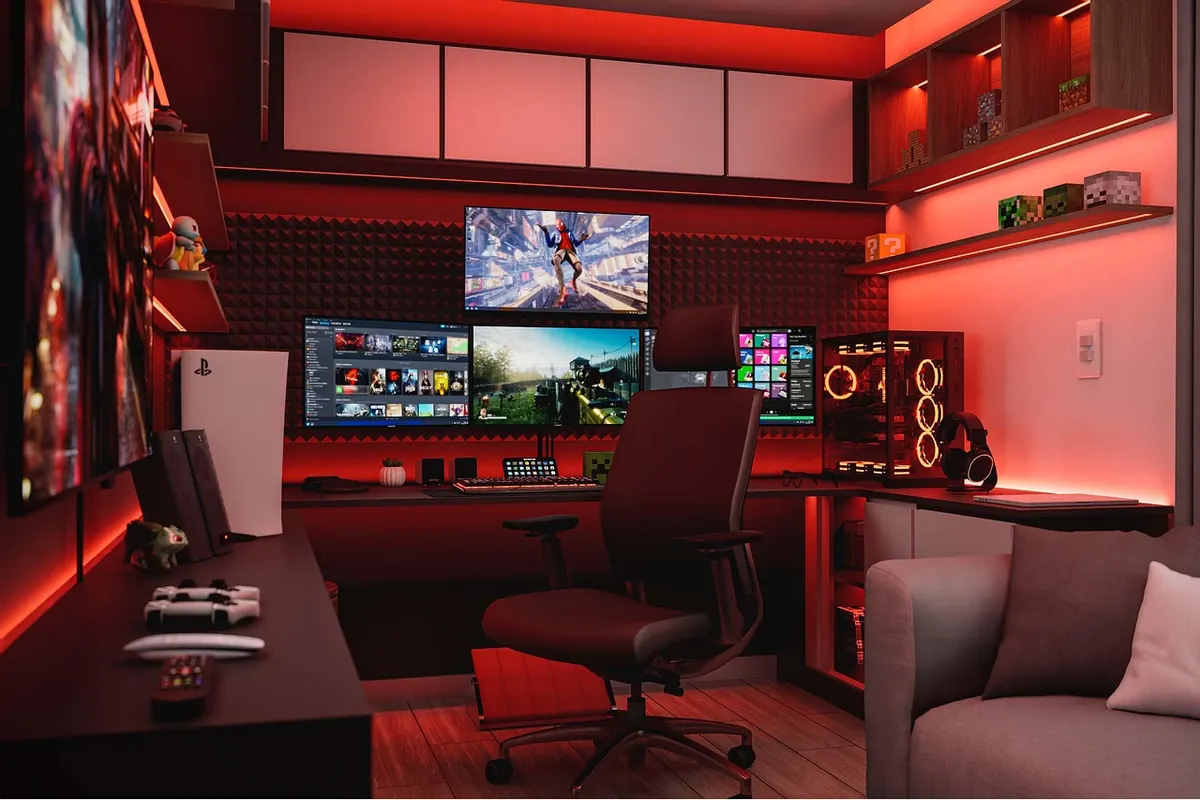
Photo: Setupx3D / Pixabay