Your first stream does not need a dedicated studio. It needs a clear picture, clean audio, and a setup you can repeat next week without rearranging the room. Most beginners spend weeks choosing an overlay pack and ten minutes on microphone placement, which is exactly backwards. Here is the order that matters, and the settings that will get you live without a fight.
Get the Audio Right Before Anything Else
Viewers forgive a soft image. They leave over hum, clipping, and keyboard rattle. Audio is the part of your stream people notice within the first ten seconds, and it is usually the cheapest thing to fix.
Microphone placement
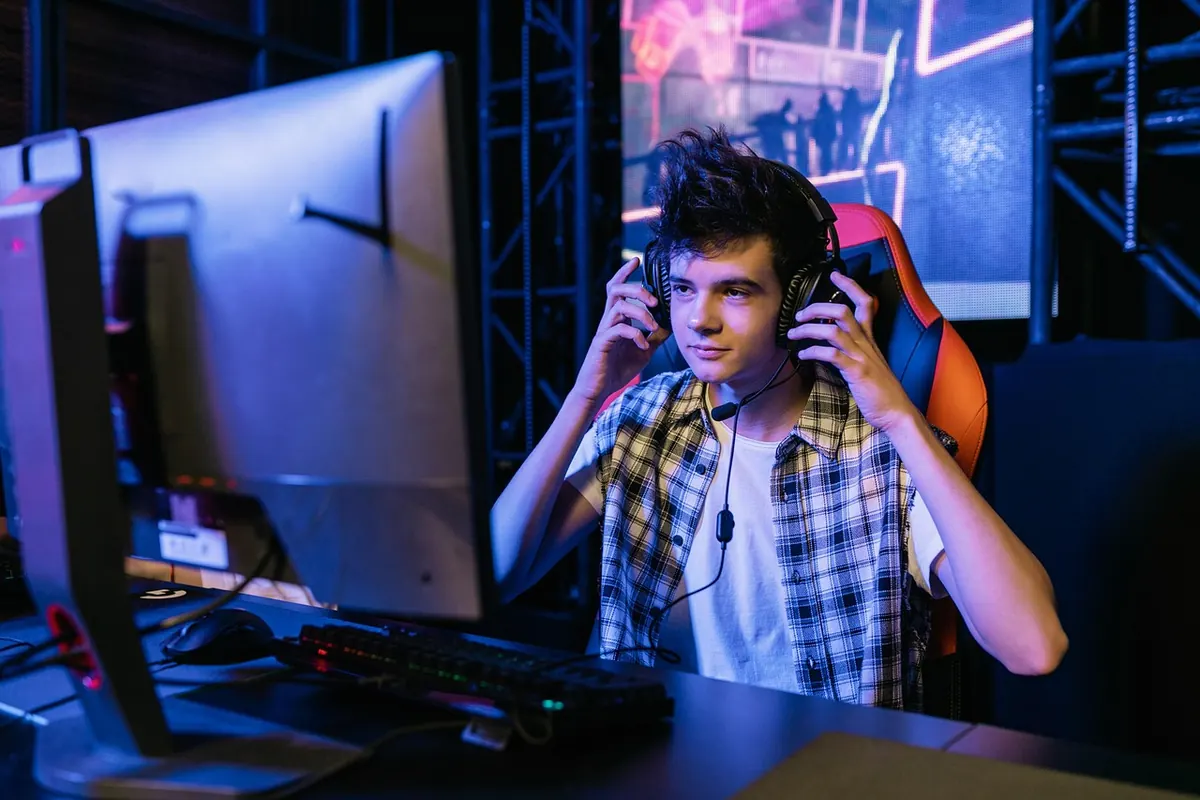
Distance matters more than price. A cardioid microphone — dynamic or condenser — should sit roughly a hand-span from your mouth, about 10 to 15 cm, angled slightly off-axis so you are not breathing straight into the capsule. Mount it on a boom arm rather than a desk stand: every mouse click and keyboard bump travels up a solid stand and into the recording. A cheap pop filter earns its place immediately.
Set gain so normal speech peaks around -12 to -6 dB on the meter. If the bar touches zero, you are clipping, and no amount of post-processing repairs that. Speak in your streaming voice at streaming volume while you set it, not in a whisper.
Fix the room, then the channel
Soft furnishings do more than most plug-ins. A rug, a curtain behind you, a bookshelf — anything that breaks up flat walls — reduces the boxy echo that makes a good microphone sound like a laptop. Push the PC tower away from the mic if the fans roar. Only then reach for a noise gate and a gentle compressor, and keep the gate light: aggressive gating chops the first syllable of every sentence and sounds worse than a little room noise.
Capture Settings That Won't Fight Your Upload
Your streaming software — OBS Studio is the standard and it is free — encodes the game and sends it out. Three numbers decide whether that trip is smooth.
- Resolution: 1080p if your connection allows it; 720p is honest, sharp enough, and easier to keep stable while you are learning.
- Frame rate: 60 fps for shooters and racing games, 30 fps for slower or menu-heavy titles. Match the game's refresh rate where you can.
- Bitrate: around 6000 kbps for 1080p60 on Twitch, roughly 3500–4500 kbps for 720p60. YouTube accepts more, so use that if it is your platform.
- Keyframe interval: 2 seconds. Leave it there unless a platform tells you otherwise.
Use hardware encoding — NVENC on Nvidia cards, AMF on AMD, QuickSync on Intel — unless you have spare CPU cores sitting idle. It costs a little image quality and saves you a stuttering stream. Then leave headroom: run a speed test and use no more than about three quarters of your upload, because phones, consoles and family members share the same line.
Keep the stats dock visible for your first few broadcasts. If dropped frames from the network climb, your bitrate is too high for the connection, so lower it or step down to 720p instead of hoping it settles. If rendering drops climb, the encoder or the game is overloading the machine — cap your in-game frame rate first.
Lighting: Soft, Consistent, Slightly Boring
Boring is good in lighting. One soft source is enough to start: an LED panel with a diffuser, or a floor lamp bounced off a white wall, placed about 45 degrees to your face and slightly above eye level. Soft light flatters. A bare bulb directly overhead carves shadows into your eye sockets and turns your forehead into a mirror.
The two classic mistakes
First, never sit with a bright window behind you. The camera exposes for the window and turns you into a silhouette. Second, do not mix colour temperatures: daylight through the curtains plus a warm desk lamp gives you one orange cheek and one blue one. Pick somewhere around 5000–6000K for your key light and match everything else to it. If you use a green screen, light the fabric separately and evenly with two small lamps, and stand at least a metre in front of it so green does not bleed onto your shoulders.
Framing, Camera, and the Desk Behind You
Any recent webcam is fine for the first month. Put it at eye level — a stack of books is a legitimate camera stand — and frame yourself from mid-chest up with a little headroom. Look into the lens when you greet people, not at your own preview window. If your camera software allows it, lock exposure and white balance manually so the image does not drift every time a cloud passes.
What the camera sees is all that matters, which is good news for anyone with a messy room. A plain wall behind you beats a cluttered shelf, and a made bed beats both. Turn off overhead lights that reflect in a glossy monitor, and check what is visible on your second screen before you start.
Overlays, Alerts, and a Short Scene List
Every overlay element should do a job: show the game, show you, show chat, show the alert. Anything beyond that competes with the thing people came to watch. Keep the outer edges of the frame clear — some players and mobile viewers crop or cover them — and skip the animated border around the whole screen.
Four scenes will carry you a long way:
- Starting soon — a still image, a countdown, quiet music at low volume.
- Gameplay — full-screen game capture with a small camera in a corner.
- Just chatting — larger camera, chat on screen, game hidden.
- Be right back — a still card with alerts muted so nothing fires while you are away.
Use one readable font, big enough to survive being watched on a phone. Then set alert volumes by ear during the test — an alert that makes you jump is an alert that made your viewers jump too.
The Test Broadcast, Twice
Record a ten-minute local capture before you go anywhere near a live button. Watch it back with headphones at the volume a viewer would use. You are checking two things: whether your voice sits comfortably above the game, and whether anything clips when you laugh. If you sound distant, move the microphone closer before you touch any EQ. If the game drowns you, pull game audio down in the mixer rather than pushing your mic up.
Then do a real test broadcast — unlisted on YouTube, or to a spare account. Watch the VOD afterwards, not the live preview, because the VOD is what people actually received. Then invite one patient friend to watch for five minutes and tell you honestly whether the audio balance works. Fix one thing at a time, and only one, so you know what worked.
Your First-Stream Checklist
Twenty minutes before you go live, run through this in order:
- Microphone at the right distance, gain checked with a normal speaking voice.
- Game audio balanced against your voice in the mixer.
- Bitrate set for your upload, keyframe at 2 seconds, encoder chosen.
- All four scenes named and tested, camera framed and focused.
- Stream title, category and tags filled in before you press start.
- Alerts working, phone silenced, water within reach.
Then start the stream and say hello to whoever turns up, even if it is nobody for the first ten minutes. The first broadcast will be imperfect — a scene will be mislabelled, an alert will be too loud, someone will hear your chair. Note it, fix it next time, and keep the setup simple enough that going live stays a ten-minute job rather than a production.
Photo: u_jrmjeviymr / Pixabay